Processing Grievances
This guide describes the grievance record and every available action, from take-over to closure. Open a grievance from the list (View) or from My Assignments. For the full sequence of steps, follow the tutorial Resolving a grievance end to end.
The record
From top to bottom, the record shows:
- the header: reference, status, priority, Sensitive grievance badge when applicable, and the action buttons;
- Grievance information: component, type, reception channel, subject, description, dates;
- Complainant: identity (or Anonymous), contact, location, Linked beneficiary when one was attached;
- GRM information: acknowledgement, complainant notification, resolution process, and for a sensitive grievance the SEA/SH form and the SEA/SH verification;
- Assignment: assigned agent, date, history;
- the workflow timeline: current phase, due date, required conditions, Move to next phase button;
- Supporting documents and Comments (see Comments and documents);
- History of every action.
Record actions
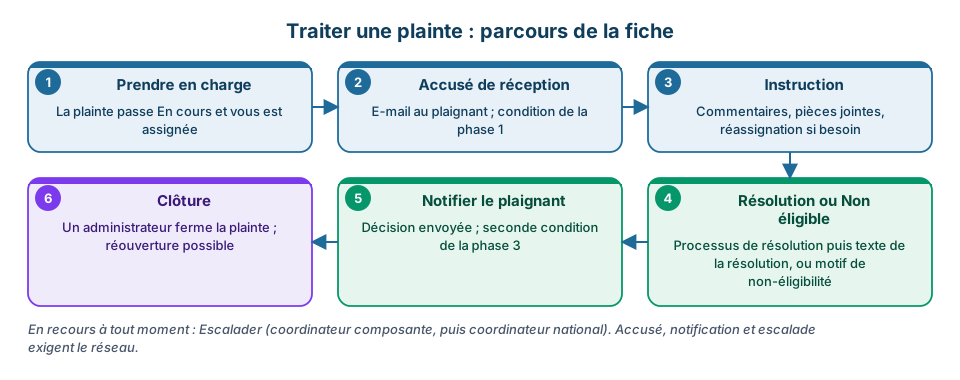
| Action | Effect | Who |
|---|---|---|
| Send acknowledgement | E-mail to the complainant (if an address exists); the date is recorded and the “Acknowledgement sent” condition is met | any agent who can see the grievance |
| Take over | The grievance becomes In progress and is assigned to you | any agent |
| Assign / Reassign | Pick an agent from the available agents list; a reason is required for a reassignment | any agent |
| Process | Opens the Resolution process: proposed solution, agreed solutions, complainant's response; Save and continue or Skip to processing | any agent |
| Resolution | Declares the grievance Resolved with the resolution text | any agent |
| Not eligible | Declares the grievance Not eligible with the non-eligibility reason | any agent |
| Notify complainant of the decision | E-mail of the resolution or decision; contact details must be confirmed before sending; the date meets the “Complainant notified” condition | any agent |
| Escalate | Moves to the next escalation level, reason required (see Escalation) | assigned agent, supervisor or administrator |
| Close | A Resolved or Not eligible grievance becomes Closed; permanent after confirmation | administrator |
| Reopen | A Closed grievance returns to In progress, with a reopening reason; the Reopened grievance phase (15 days) starts | administrator |
| Edit | Changes the grievance fields (identity, channel, locality, component, subject, priority, sensitive flag) | any agent; see the note below for sensitive grievances |
| Fill in (SEA/SH block) | Opens the confidential reporting form | Manage sensitive SEA/SH grievance details |
“Any agent” means any signed-in user with access to the grievance, i.e. holding the matching component permission (one of the Access to Education / Health / Social Protection / Other grievances permissions) and, for a sensitive grievance, View sensitive SEA/SH grievances. The Process grievances and Close grievances permissions drive menu and screen display; the server does not re-check them action by action.
Editing the fields of a sensitive grievance, like the SEA/SH form and the verification, requires the Manage sensitive SEA/SH grievance details permission (“Manage sensitive SEA/SH grievance details”). A user holding only View sensitive SEA/SH grievances can read but not edit.
Acknowledgement, notification and escalation need the network: they are unavailable offline (see Working offline).
The phased workflow
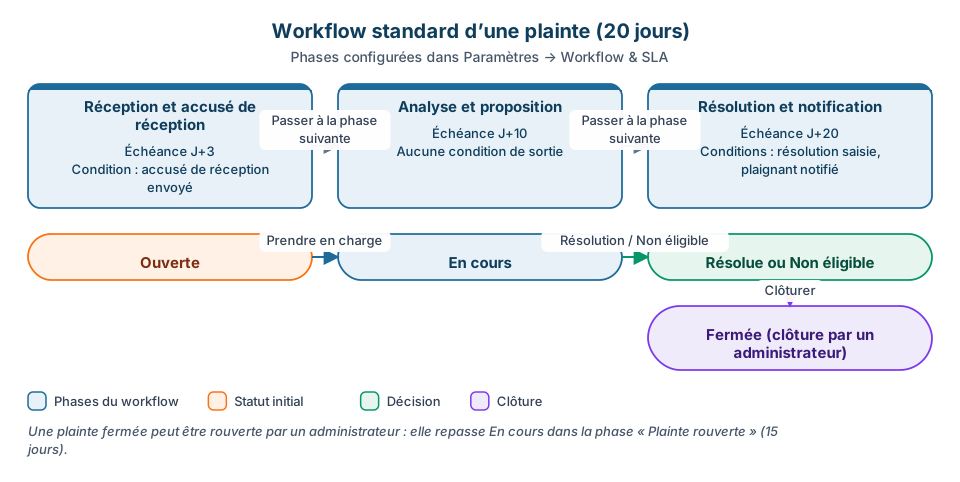
Each grievance follows the workflow matching its type (standard or sensitive), defined in Settings → Workflow & SLA. The timeline shows the current phase, its due date (D+n from filing) and any delay.
To move forward:
- Meet the phase's required conditions (shown in the timeline, for example “Acknowledgement sent”).
- Click Move to next phase, add a comment if useful, confirm.
Only the next phase can be reached; there is no step back and no phase skipping. If the workflow was never initiated on an old grievance, an Initialise workflow button appears.
Standard workflow (20 days)
| Phase | Due | Condition to move on |
|---|---|---|
| Reception and acknowledgement | D+3 | Acknowledgement sent |
| Analysis and proposal | D+10 | none |
| Resolution and notification | D+20 | Grievance resolution, Complainant notified of the decision |
Sensitive cases workflow (30 days)
See Sensitive grievances: five phases, with consent, referral and notification conditions.
My Assignments
Menu Grievances (GRM) → My Assignments (permission View my assignments): your grievances with four counters (Total, In progress, Overdue, Sensitive), filters by status, priority and delay, and a View button to each record. This page has no export and no bulk action.
History
Every action (creation, assignment, status or phase change, acknowledgement, notification, escalation, reopening, offline entry) is time-stamped with its author in the History tab. An action done offline is tagged “offline” with its real entry date.
Good practice
- Send the acknowledgement as soon as you take over: it is the first condition of the standard workflow.
- Document the Resolution process before declaring the grievance resolved; this is the text the complainant will receive.
- For an out-of-scope grievance, use Not eligible with a clear reason rather than a resolution.
- Leave closure to the administrator once the complainant has been notified.